
Use case #11: Self Service Insights using Tableau Parameters and Datama
- Category
- Tableau
- Solution
- Datama Compare
- Type
- Recurring
- Customer
- Lingoda
Use case #11: how Lingoda gives its teams self-service gap analysis by combining Tableau parameters with Datama, without waiting on the data team.

At Lingoda, leveraging Datama has been a game changer for our data analysis and decision making. The solution has helped us automate complex comparisons, streamline insights, and enhance data driven strategies. Its intuitive approach allows us to quickly identify key drivers of metric evolution. Given its impact, we’ve included Datama evangelization and the expansion of its usage in our 2025 roadmap
Samy Bouras
Head of data, Lingoda GmbH
Context: Regular gap analysis
Lingoda is an online language school with a mission to build bridges across the world through language learning. Founded in Germany in 2013, Lingoda serves over 100,000 students globally with high-quality online language courses.
The team operates with a strong data-driven approach. Recently, the data platform underwent a modernization, transitioning to a modern data stack that includes Tableau, DBT and Redshift. In 2023, Datama was added to this stack to enhance the explanatory aspects of reporting through Tableau extensions.
This initiative aligns with Lingoda's mission:
- Promote wealth & opportunity through education.
- Empower global talent with the language, cultural, and technical skills needed for integration and success.
It also reflects one of Lingoda's core values, Turn Insights Into Actions:
- "We transform insights and experiences into impactful ideas that make Lingoda a great place to learn and teach. We focus on our goals, seize opportunities, and make them happen."

Approach: Leveraging parameters in Tableau
Within their regular tasks, the data team must explain KPI variations of any kind between two periods, like two marketing campaigns or a marketing campaign and a period with no discount. Since they got familiar with Datama Compare, they have built multiple highly valuable use cases to quickly answer those questions.
To go one step further, they wanted to give their stakeholders the capability to play directly with Datama in Tableau, letting them decide on which metric, which period, and which type of dimensions Datama will analyze.
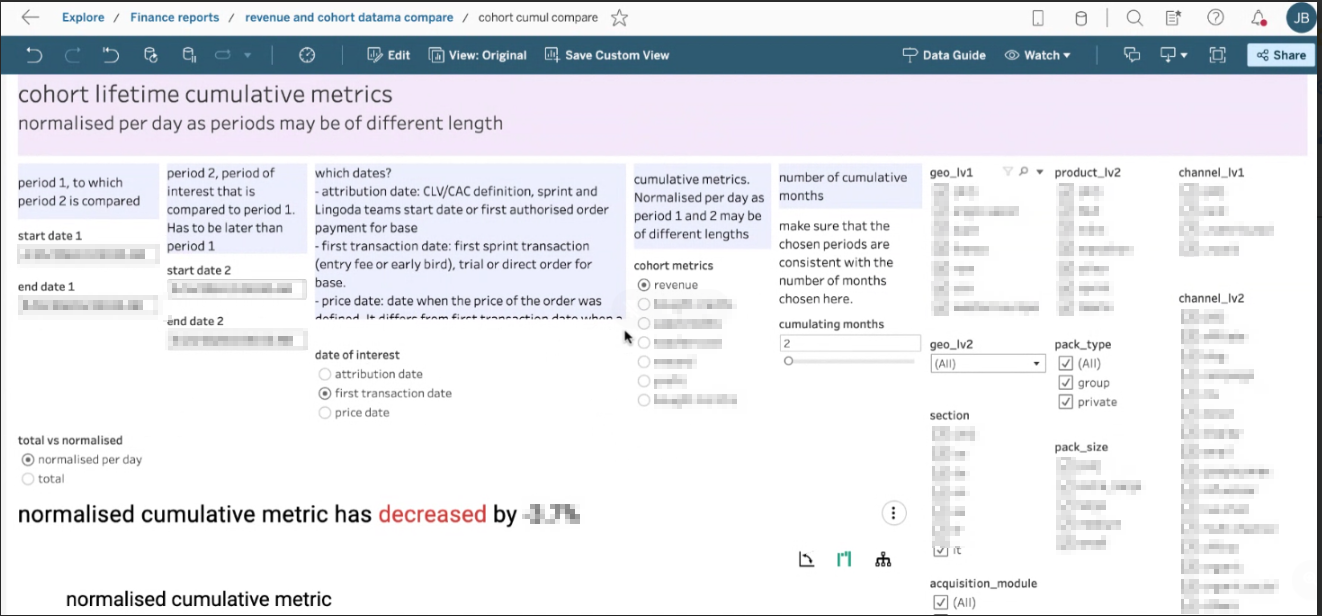
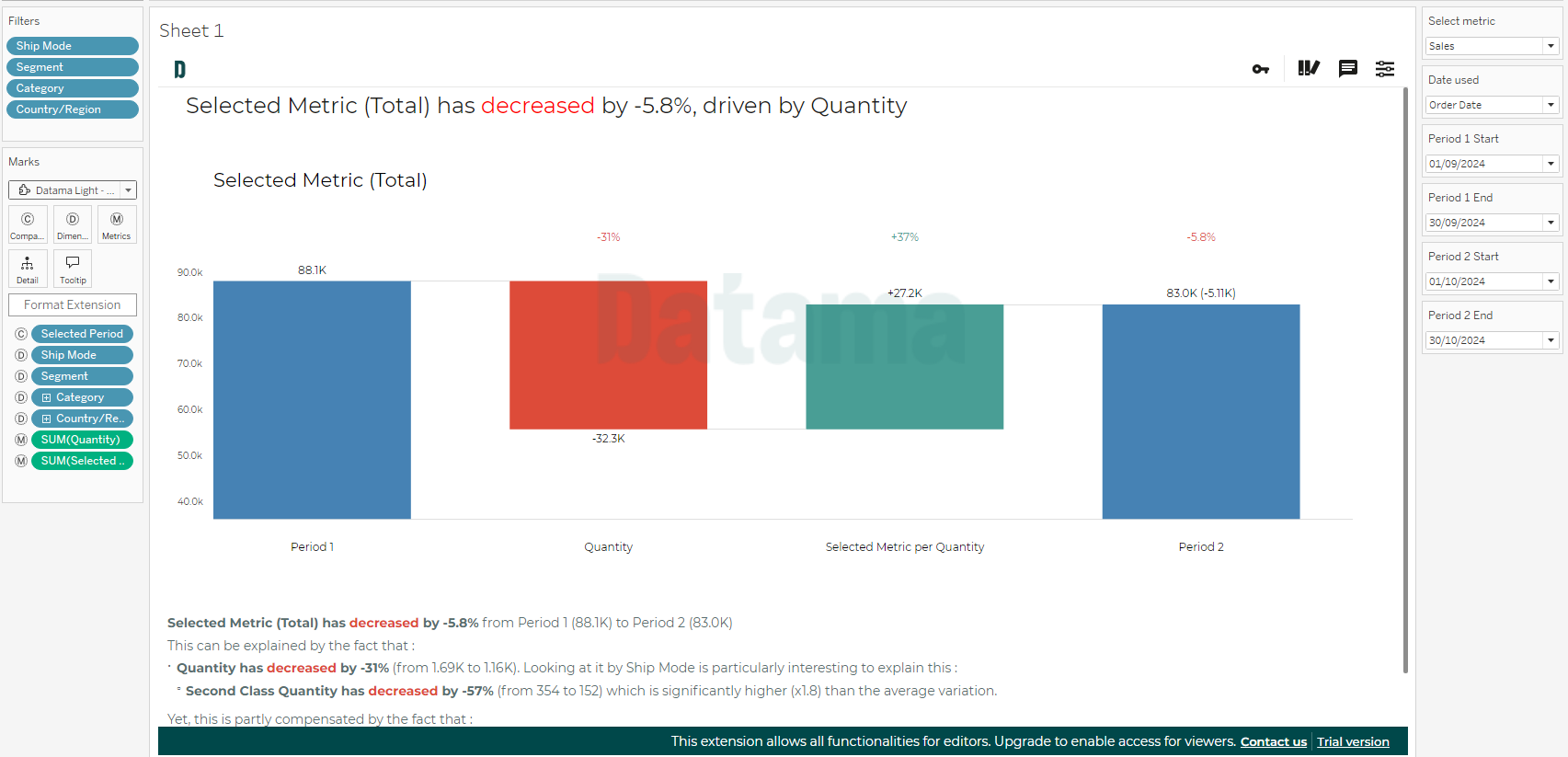
So, they had the idea to make metrics and dimensions processed by Datama dependent on Tableau Parameters, which would impact calculated fields, so that the final user can play with those parameters and customize seamlessly the result they get in Datama. Results are displayed in a dashboard where the user can also play with filters easily. The dashboard looks like this, with parameters and filters at the top, and Datama Compare waterfall at the bottom:
How to replicate: Example on Sample superstore
The dashboard Lingoda’s team built is obviously quite customized to their specific needs, but for the sake of this article and to make it easy to replicate for you, we will use the default “Sample Superstore” Dataset and typical retail use case.
The demo template for this use case can be downloaded here.
So, as a Superstore analyst, imagine you want final users to be able to explain variations of Profit or Sales, between any period of time, considering that the analysis can be based on shipping date or order date…
We’ve got you covered!
Follow below step to make it work
1. Create “Selected date” field
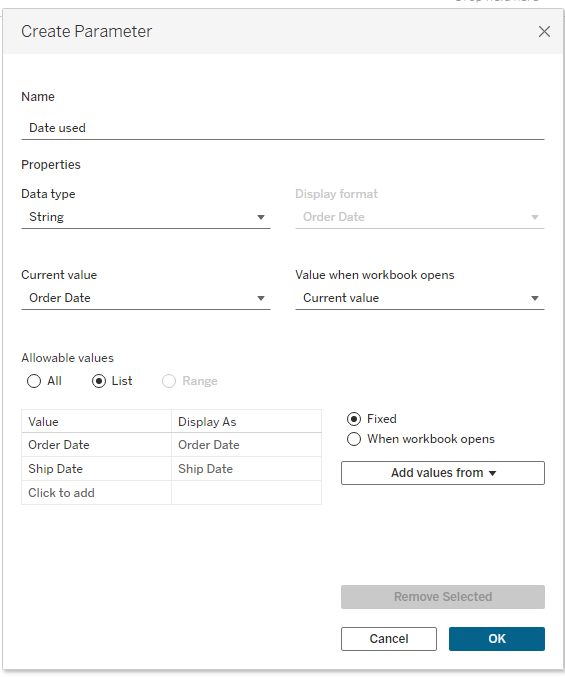
Since we want to be able to switch from Order date to Ship date, we can create a parameter “Date used” following below settings
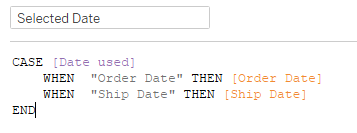
Then we can create a calculated field based on this parameter to be able to switch easily from Ship Date to Order Date
2. Create Selected Periods
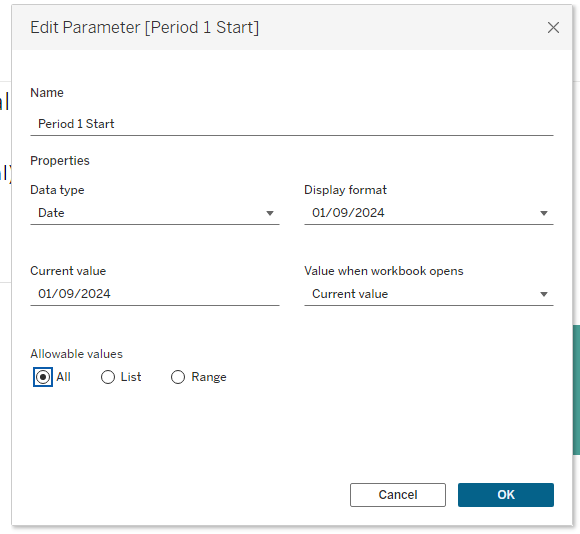
Using this “Selected Date” field, we will now create new parameters to be able to define the two periods we want to compare “Period 1 Start”, “Period 1 End”, “Period 2 Start” and “Period 2 End”. All four parameters will look like this:
Then, based on these parameters you can create a “Selected Period” which will change depending on user inputs:

3. Create Selected Metric
Since we said that user should be able to analyze either Profit or Sales equally, we will finally create a “Selected Metric” Input using the same logic of parameters as before.
We create a “Select Metric” parameter
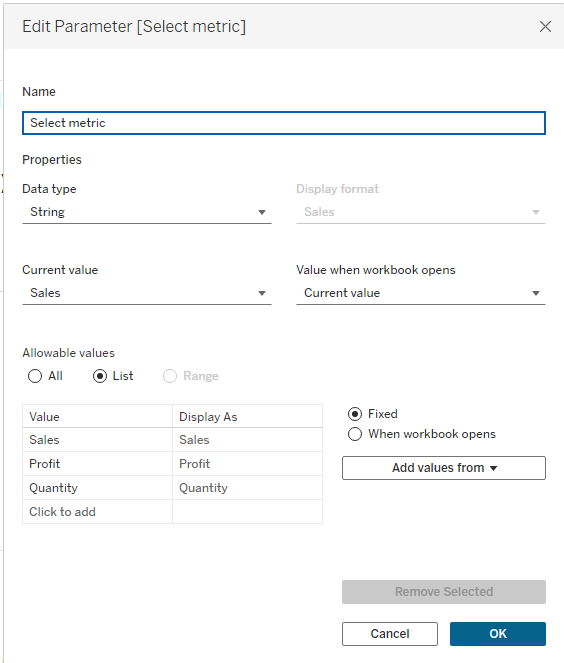
And then use that parameter in a “Selected Metric Calculated field”

4. Add Datama extension
We’re done with data preparation in Tableau. Now comes the easiest part.
Just add Datama’s tableau viz extension to a worksheet (see how) and drag & drop the appropriate fields
- In the “Compare (C)” mark, add the “Selected Period” field we just created
- In the “Dimensions (D)” mark, add the dimensions that you want Datama to score to explain variations of each KPI
- In the “Metrics (M)” mark, add the metrics that are part of your market equation (learn more). In our case, we want to analyse the “Selected metric” and be able to split the drivers of variations between Volume (Quantity) and Ratio (in this case Price of Margin per product)
- Add any required dimensions that you want the user to be able to filter on in the proper “Filters” area
5. Let final users enjoy the analysis
With this simple set up, final users can play easily with the period and the metric they want to analyze. They will get a clear sense of what’s driving the variation, which KPI and which dimension are the most interesting to look at, as Datama Compare always bring, but with the flexibility of Tableau parameters (Learn more on Datama Compare)
Outcomes: From “Self-service analytics” to “Self-Service insights”
Using this set up applied to their own business use case, the data team of Lingoda managed to create a use case that was widely flexible and allowed to understand in depth drivers of variation of main KPIs in few seconds, for any user having access to Tableau.
For analysts, they saved a lot of time in those regular gap analysis use cases, and found with this dashboard a good way to promote Datama to the company on simple, but customizable use case.
This also helped to move towards a more self-service usage of data, not only to access the data, but also to understand it.
Finally, the use case helped to connect the dots from dashboards to analysis realized by data analyst and eventually helped the team to improve their business.
Related articles
- Use case
Use case #8 Exec Weekly business monitoring at TheFork
Use case #8: how TheFork explains weekly performance against budget to its exec committee, showing only the contributing factors that matter.
- Use case
Cost of Sales analysis in Qlik
Cost of Sales analysis at Europcar Mobility Group: how each country manager reads marketing COS drivers directly in Qlik and decides what to act on.
- Use case
CRM Analysis at La Centrale Using the Datama Extension in Tableau
CRM analysis at La Centrale: how the auto marketplace tracks the performance of its customer search alerts, campaign by campaign, inside Tableau.
Want the why behind your own numbers?
Try Datama free, or book a 30 minute demo with the team.